WebP to JPG for compatible uploads
If an upload form accepts JPG but rejects WebP, open the image converter and choose JPG as the output format. Use a quality setting appropriate for the image and choose a fill color for transparent pixels.
JPG is a lossy format. Converting a WebP file to JPG may increase file size or introduce additional compression artifacts. Use the original source when available, and inspect small lettering and high-contrast edges after export.
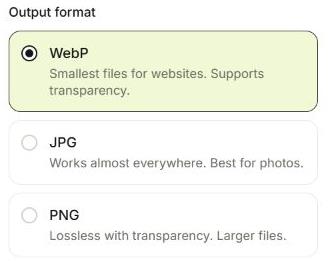
PNG to WebP for web images
Choose WebP to compare smaller web-friendly exports with your PNG originals. Lossless WebP preserves pixel detail; lossy WebP trades some detail for a smaller file. Both can support transparency.
The best choice depends on the content and where it will be used. A flat illustration, a photograph and a screenshot may each respond differently. Check the receiving app or website accepts WebP before converting a whole library.
JPG to PNG does not restore lost detail
Converting JPG to PNG changes the format but cannot recover detail already removed by JPEG compression. The PNG output can be much larger. Use it when a destination specifically requires PNG or a later workflow needs a lossless intermediate file.
Conversion also does not remove a background or create transparency from an opaque photo. Background removal is a separate operation available in supported platform workflows.
Convert multiple images with one output setting
Add supported still images, select one output format and review the planned filenames. Run the batch and download the results individually or in a ZIP. Mixed input formats can share the same output setting.
Animated image transformations are blocked to preserve their frames; animated files can be renamed unchanged. HEIC, TIFF, SVG and RAW are not supported inputs. AVIF input depends on browser decoding support. Your files are processed locally and originals remain unchanged.
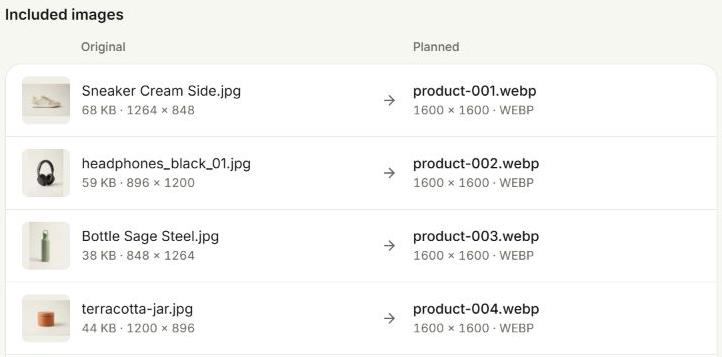
Try it with the sample batch
Eight product photos, ready to explore every setting.