Choose between a size limit and an exact frame
A maximum size and an exact size solve different problems. A 2400 × 1600 landscape photo fitted inside a 1600 × 1600 box becomes 1600 × 1067. It fits the limit, but it is not square. A portrait photo ends up with a different height and width.
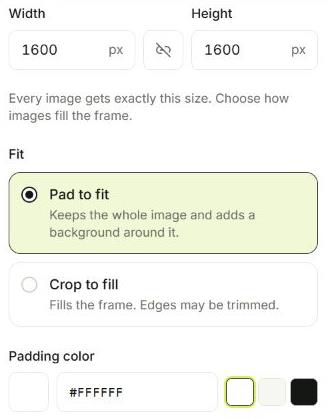
For a catalog that requires every file to be square, use an exact frame and padding. The complete product stays visible while empty space fills the remaining area. Crop to fill also creates an exact frame, but cuts away the edges.
Set up a batch of square product images
Open the bulk image resizer and add your original product photos. Set the target dimensions, for example 1600 × 1600 pixels, then choose the exact-size padding option. Pick a background that suits the destination.
Check the preview of both a wide and a tall product. The same frame does not guarantee the same apparent product size: whitespace already present in the original image affects the result. Use a platform kit with individual crop controls if each photo needs its own framing.
- Start with original, high-resolution images.
- Choose padding to preserve the complete product.
- Keep enlargement off when small originals should not be upscaled.
- Review every planned size before processing.
Choose a format and download the result
For a website, compare JPG and WebP at a moderate quality setting. Use PNG when you need lossless output or transparency. JPG cannot preserve a transparent background; transparent pixels are filled with your selected color.
Download the processed files together in a ZIP. Batch creates new files and leaves your originals unchanged. Open a few exports at their intended display size before replacing images in your store.
Try it with the sample batch
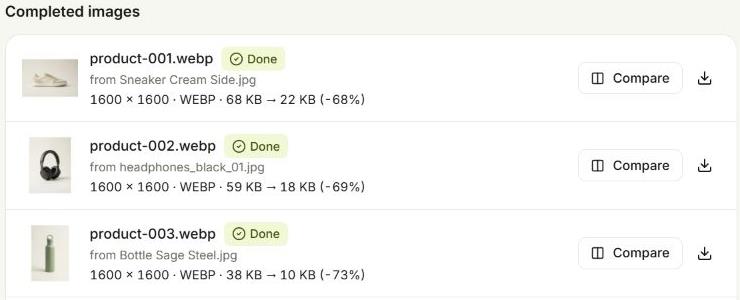
Eight product photos, ready to explore every setting.