Separate pixel dimensions from file size
Pixel dimensions describe the image frame; file size describes how many bytes the encoded file uses. Two images with the same dimensions can have very different file sizes because texture, transparency, format and quality all matter.
If the destination only displays an image at a modest width, resizing an oversized original may save more space than lowering quality alone. Keep your original file and make changes to an export copy.
Compress a batch and inspect the actual result
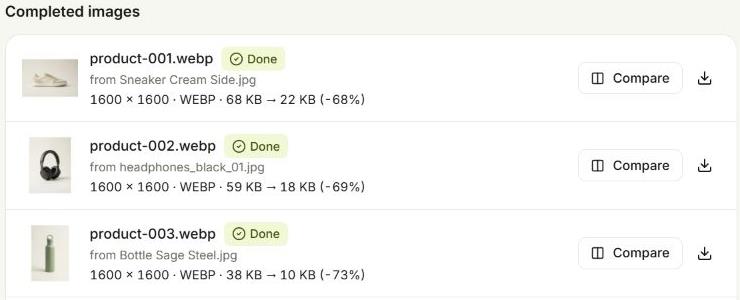
Open the image compressor, add still images and start with a moderate quality setting. Review the plan, run the batch and compare the resulting byte sizes. Look at edges, small text and detailed textures before reducing quality again.
Batch does not guarantee an exact target such as 100 KB or 1 MB. If a destination has a strict limit, check each downloaded file. Reduce dimensions or quality and reprocess the original when a file is still too large.
- Reduce unnecessary pixel dimensions first.
- Compare JPG or lossy WebP quality settings for photos.
- Inspect output size and appearance for every important image.
- Avoid repeatedly compressing an already compressed export.
Why the quality slider does not shrink PNG the same way
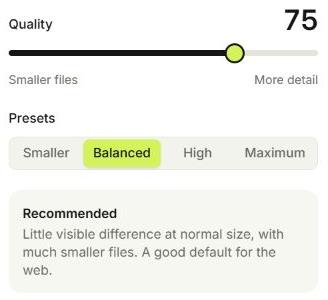
PNG is lossless, so a JPG-style quality slider does not remove detail from it. PNG compression settings can change how efficiently pixels are stored, but a detailed photograph may still be large.
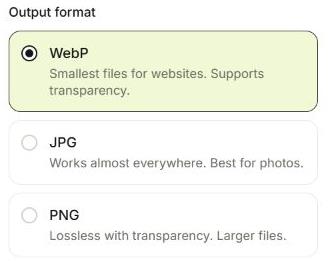
Try WebP when the destination supports it, especially if you need transparency. JPG is another option for photos with an opaque background. Some images are already efficiently encoded, and converting or recompressing them can produce a larger file. Compare the actual exports instead of assuming every conversion will save space.
Try it with the sample batch
Eight product photos, ready to explore every setting.