Give each image a useful filename
Google recommends short, descriptive image filenames. Use a name that describes the photo, such as cream-sneaker-side.jpg. Repeating a keyword in every filename does not make an image more useful.
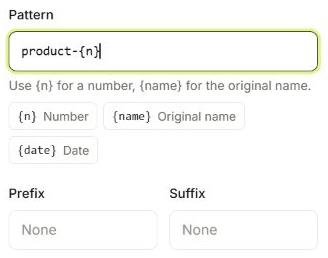
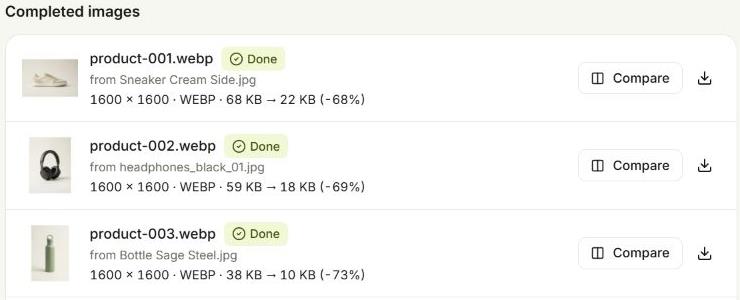
In Rename, use a shared product or collection name plus {n} for a sequence, or {name} to keep an existing descriptive name. For example, cream-sneaker-{n} with three-digit padding produces cream-sneaker-001.jpg. Use separate batches when the subject changes, and check every planned name before exporting.
Export for the place where the image will appear
An oversized original is not always the best web export. In Resize, set a maximum width that suits your layout and keep proportions locked. If a catalog needs identical square files, use Pad to fit. For photos, compare JPG and WebP; use PNG or WebP when transparency is needed. Check the actual output at its display size.
Keep the originals and export new copies. Batch can combine resizing, compression, conversion and renaming in one run. The results view shows output sizes; it does not predict a search ranking or guarantee a compression percentage.
Add alt text in your website editor
Alt text belongs to the image element on the page, not its filename or embedded metadata. Describe the image in the context of that page. For a product photo, “Cream sneaker viewed from the side” is more helpful than a list of shopping keywords. Decorative images can use an empty alt attribute.
Batch prepares the files. Add alt text, a relevant caption when useful, and the image to the correct product or article in your website editor after downloading. Renaming a file does not automatically update any of those fields.
Check the published page, too
Google discovers images through standard image elements with a src attribute. Use responsive images where your site supports them, reserve space with width and height, and avoid lazy-loading the main image visible on arrival. A smaller file alone cannot fix every loading problem.
- Open the published page on a phone and check the crop and readability.
- Confirm that the exported format is accepted by your website editor.
- Check that important images have descriptive alt text and load successfully.
Try it with the sample batch
Eight product photos, ready to explore every setting.